
04 - Connection Troubleshooting and More Information
Start with easy checks, recover over USB, and try manual addresses or technical checks only if needed.
Try the simple checks first
- Step 1 of 11
Start with power and the home network
Is the eBrain powered on? Check its cable or battery connection. Put your computer on the same home network as the eBrain and try moving closer to the router. Give the eBrain time to start, then refresh this website. If it already knows the right address, it will try to connect automatically.
- Step 2 of 11
If USB will not connect
Try a USB data cable: a charging-only cable will not work. Try another USB socket and close any other app or browser tab using the eBrain. If the browser chooser opens, select your eBrain’s USB-Serial device and click Connect. Keep the USB cable attached for power and data while using this connection.
- Step 3 of 11
If Wi-Fi setup takes too long
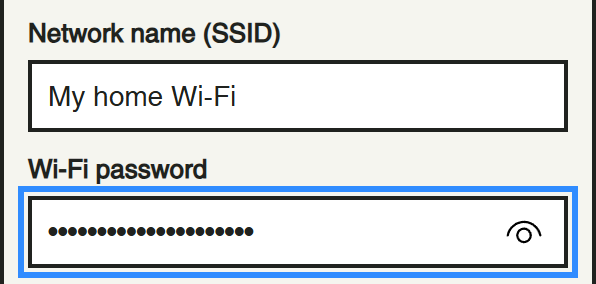
Keep USB plugged in during setup. Give Save & connect about 45 seconds. If no Wi-Fi address appears, check the network name and password with an adult; spelling and capital letters matter. Use your home’s 2.4 GHz Wi-Fi. If the correct network is already saved, try Try saved network. Otherwise enter the current details and use Save & connect again.
- Step 4 of 11
It worked before: the IP may have changed
Your router gives the eBrain a local address, called an IP. That address can change from time to time, for example after the router or eBrain restarts. Your browser may still be looking for the old address. Connect by USB again, open the dock and choose Wi-Fi settings or Connect to network. Use Try saved network, or Save & connect if the Wi-Fi details changed. This lets the website find the current IP and switch to Wi-Fi automatically. You may need to repeat this process occasionally; it does not mean the eBrain is broken.
- Step 5 of 11
Reconnect next time or stop for today
This browser remembers the last WebSocket address for this site. Power on the eBrain, join the same network, and open or refresh the page: it quietly tries that address. Another browser or computer may need the address entered again. After an established wireless link drops, the site retries automatically. Disconnect stops those retries for the current page; opening or refreshing the page tries the saved address again. If the initial attempt fails, the dock offers USB so you can recover.
- Step 6 of 11
Use your robot without the USB data link
Open a robot or programming card: closing the dock and moving between cards on this site keeps the page’s connection. Your eBrain still needs power. Only unplug USB once it has a suitable alternative power source, such as the kit’s intended battery setup. Ask an adult to check the power connection. If switching power restarts the eBrain, wait for it to rejoin Wi-Fi and for the site to reconnect.
- Step 7 of 11
If needed: find the current IP over USB
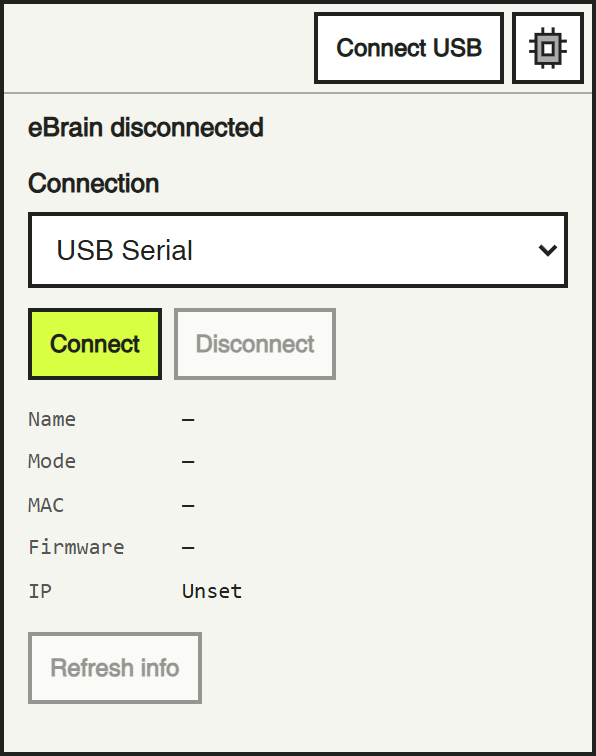
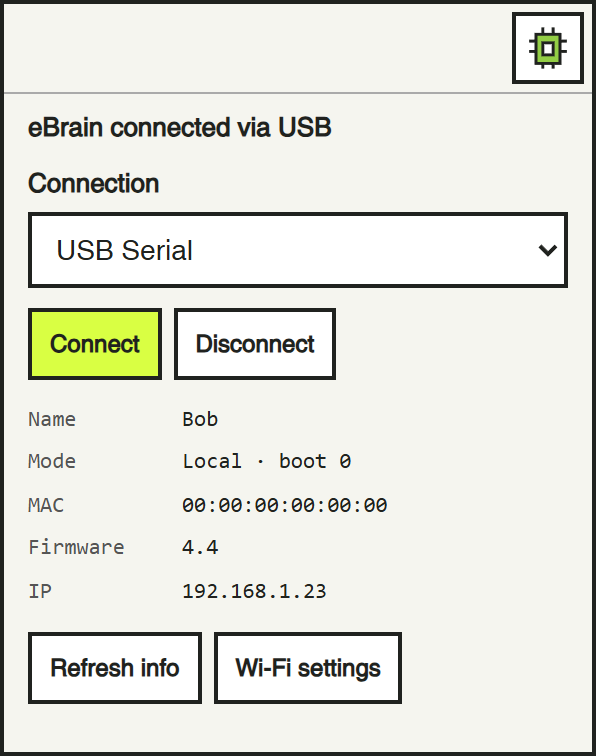
Connect USB as in the first card. Click the little board icon at the bottom right to open the dock, then click Refresh info. Write down the IP from your own eBrain, for example 192.168.1.23. IP: Unset means there is no usable Wi-Fi address yet: open Wi-Fi settings or Connect to network and try the saved network or check its details. Do not copy an example IP from this guide.
- Step 8 of 11
If needed: enter the IP yourself
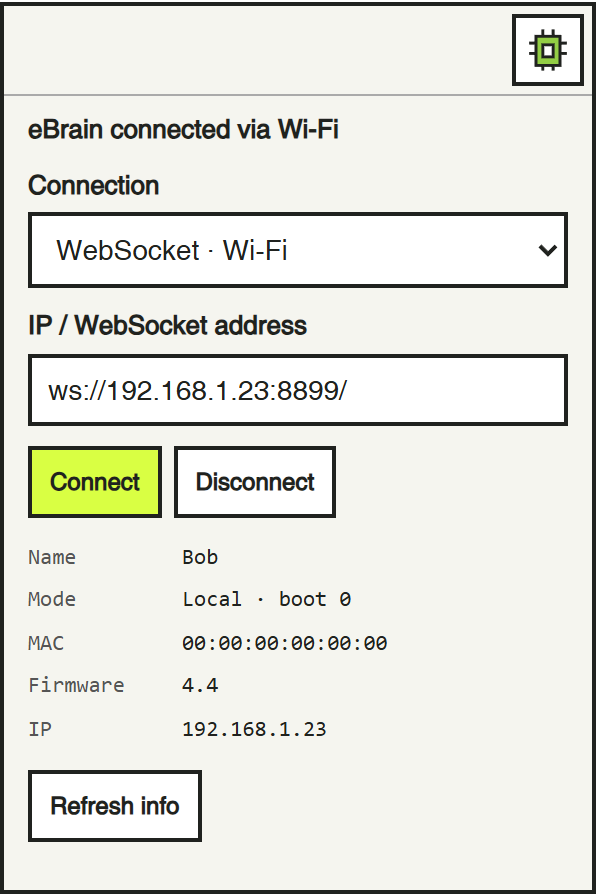
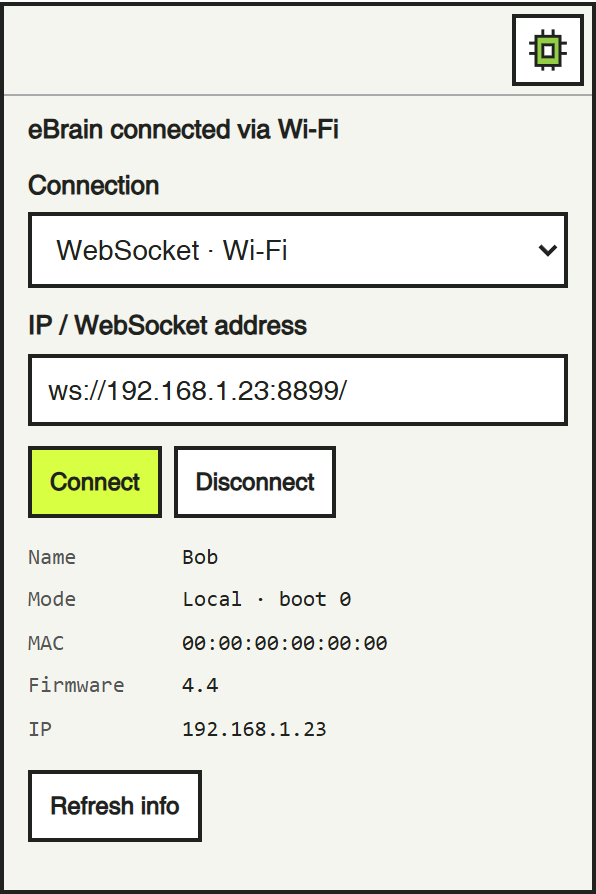
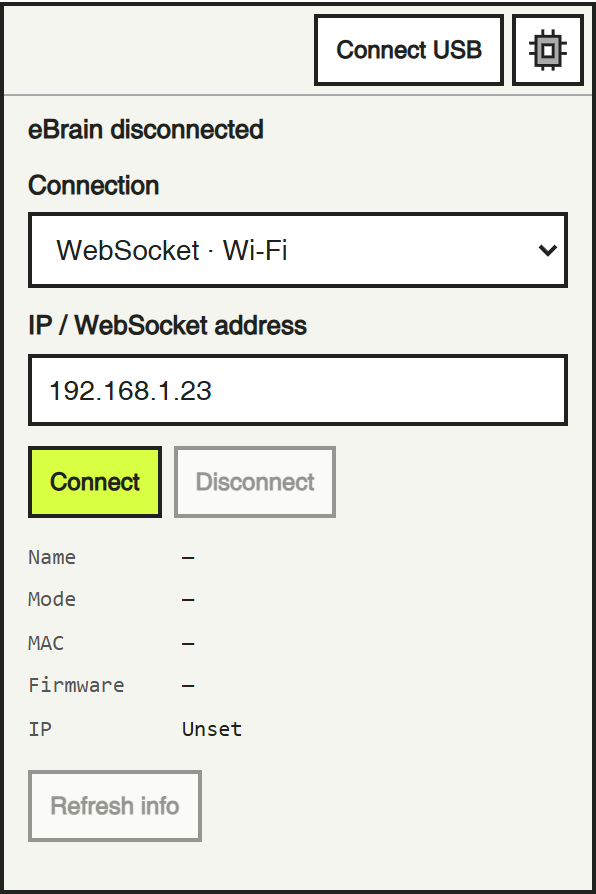
Try this only if the automatic connection has not worked and you have read your eBrain’s current IP over USB. Click Disconnect to end the USB session; keep the cable attached for power. In Connection, choose WebSocket · Wi-Fi. Type your own eBrain’s IP in IP / WebSocket address, for example 192.168.1.23. This tells the browser where to look; it does not change the eBrain’s address.
- Step 9 of 11
Connect and verify the wireless link
Click Connect in the open dock. If the browser asks for local network access, allow this trusted site to reach the eBrain, with an adult’s help if needed. Wait for the green board icon and eBrain connected via Wi-Fi. Check Name and IP, then click Refresh info to request fresh board details. Selecting WebSocket in the menu alone does not establish a connection. The quick Connect USB button is for USB; use Connect inside the dock for WebSocket.
- Step 10 of 11
More detail: ports and keeping an address
The normal WebSocket address is ws:// followed by the IP and port 8899, for example ws://192.168.1.23:8899/. If you enter just the IP, the dock adds ws:// and the default port for you. A port tells the browser which service to contact on the eBrain. The router usually assigns IPs automatically using DHCP. An adult or network administrator can consider a DHCP reservation to keep the same IP for this eBrain. They will need its MAC address, shown in the dock. Editing IP / WebSocket address in the dock does not create a reservation or change the board’s network settings.
- Step 11 of 11
If it still will not connect: technical checks
Check power, the current IP and port 8899, then confirm that both devices can reach each other on the local network. Guest Wi-Fi or client isolation can block device-to-device traffic even when both devices have internet access. A VPN, firewall or browser permission may also block local connections; ask the network administrator for help. If the browser reports a security or local-network error, check this site’s permissions. Typing wss:// does not add secure WebSocket support to the eBrain; use it only with an endpoint configured for it. USB is available while the wireless problem is resolved.
USB is always an option while you work out a wireless connection problem.