
03 - Connect your eBrain over WebSocket
Set up Wi-Fi over USB, then let the website connect your eBrain wirelessly.
Connect over Wi-Fi
- Step 1 of 6
Start on USB and open Wi-Fi setup
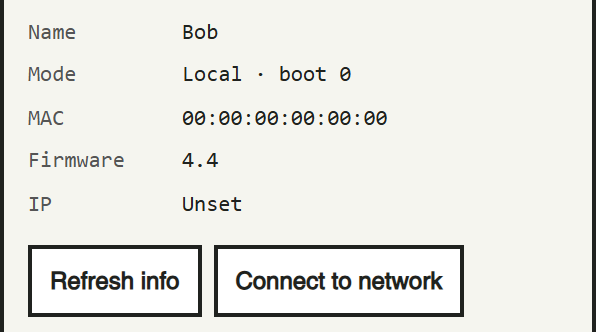
Connect your eBrain by USB using the USB connection card. Keep the cable attached for setup and power. Open the dock and click Connect to network, or Wi-Fi settings if a network is already configured. IP: Unset means the eBrain has no usable local network address yet. Ask an adult to help with your network.
- Step 2 of 6
Choose your home network
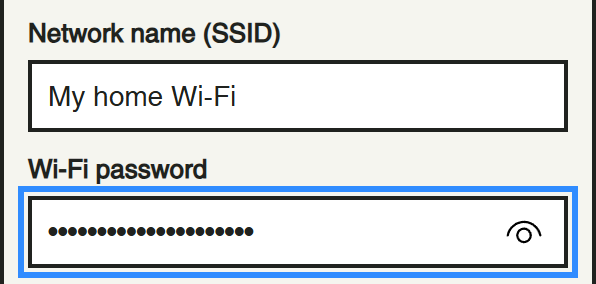
Put your computer on the same local network as the eBrain. Ask an adult for your home’s 2.4 GHz Wi-Fi name and password. Type the name in Network name (SSID) and the password in Wi-Fi password. If a network is already saved, you can try Try saved network first. The picture uses an example name.
- Step 3 of 6
Press Save & connect
Check the spelling, then click Save & connect. This saves the Wi-Fi details on your eBrain. Keep the USB cable plugged in while the eBrain restarts. The website will find its address and try to connect wirelessly for you.

- Step 4 of 6
Give it a moment
You may see Waiting for the eBrain to restart and join Wi-Fi. This is normal. Give it up to about 45 seconds before trying again. The website checks for the new IP address and tries to switch to Wi-Fi for you.

- Step 5 of 6
Check your wireless connection
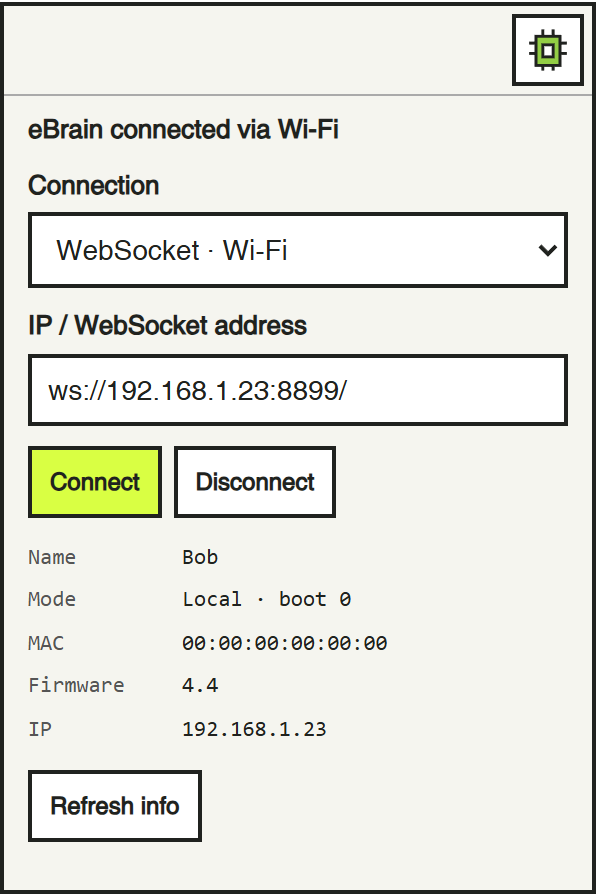
A green icon and eBrain connected via Wi-Fi mean it worked! The connection menu now says WebSocket · Wi-Fi. If the browser asks about local network access, ask an adult to help allow this trusted site to reach your eBrain.
- Step 6 of 6
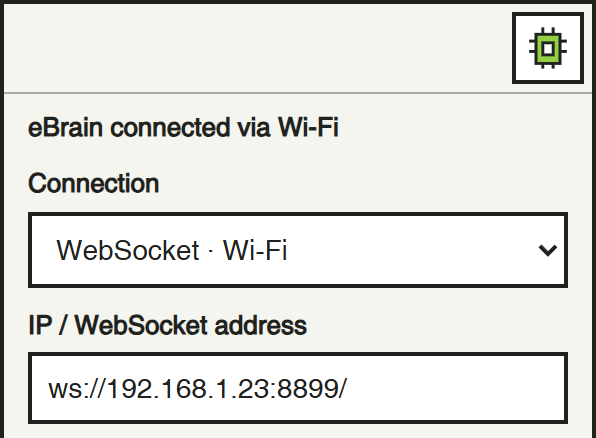
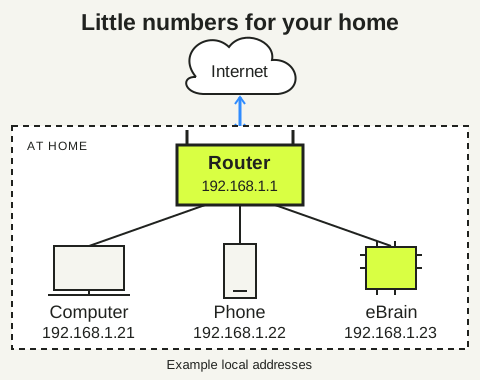
An IP address is a local “phone number”
Your router usually gives each device at home its own local IP address, such as 192.168.1.23. Think of it as a little phone number inside your house! Devices use these numbers to send messages to the right place. Your router also passes messages between your home and the internet, and sends the replies to the right device. The numbers in this picture are examples. Your eBrain’s number can change. If the site cannot find it later, you may need to connect USB again and repeat the Wi-Fi connection process. The related help card explains what to try.
Keep your eBrain powered. Only unplug USB when a suitable battery or other power source is connected. Need help next time? Open Get your eBrain connected again below.