
01 - Connect your eBrain over USB
Connect with a USB data cable and start using your eBrain. No Wi-Fi setup needed.
Connect with a USB cable
- Step 1 of 5
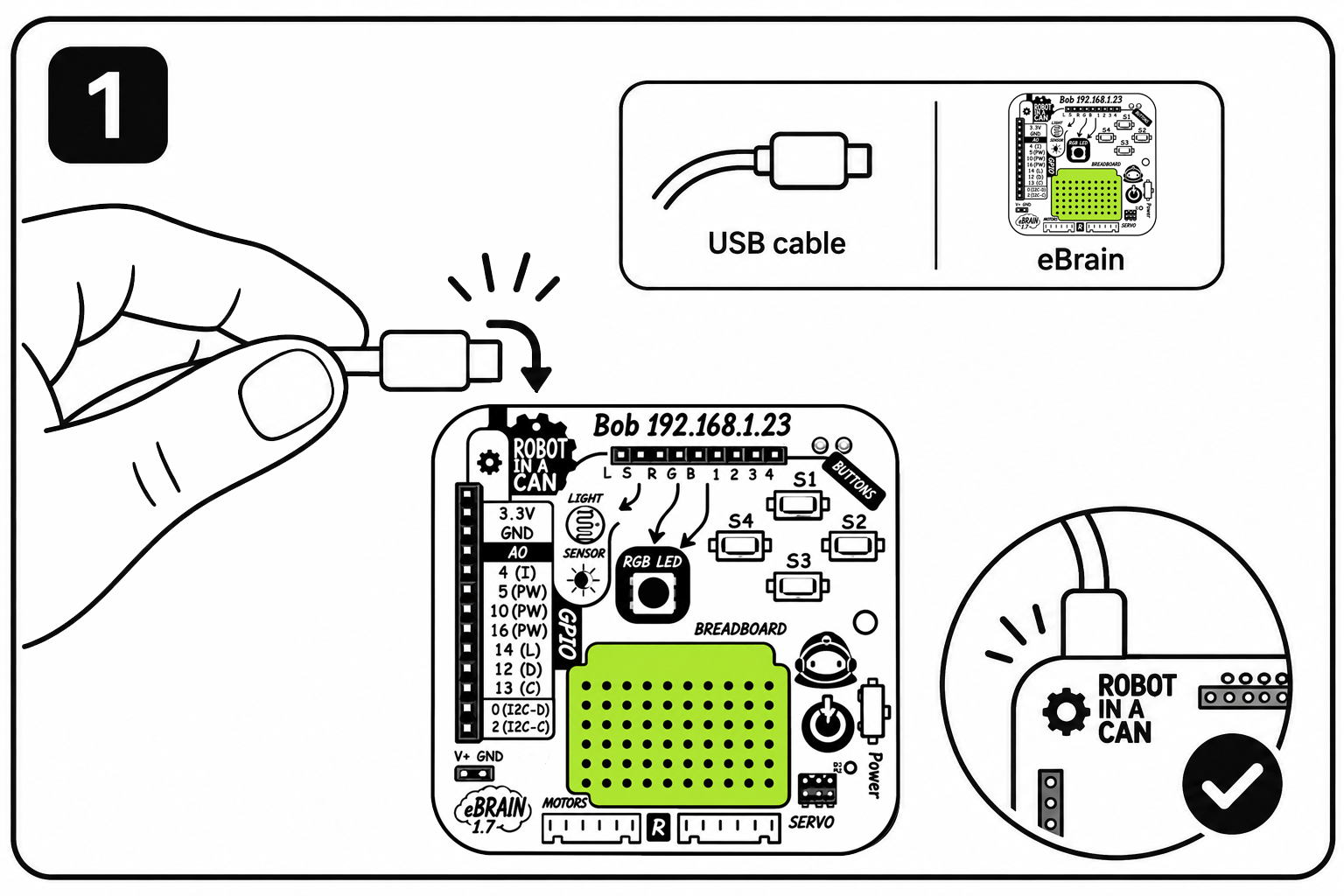
Plug in your eBrain
Use a USB data cable to join your eBrain to your computer. A charging-only cable will not work. Open this website in Chrome or Edge on a computer. Your eBrain gets power from the USB cable.
- Step 2 of 5
Press Connect USB
Find the little eBrain dock in the bottom-right corner. Click Connect USB. If the dock is already green and says it is connected, you can skip to step 4.
- Step 3 of 5
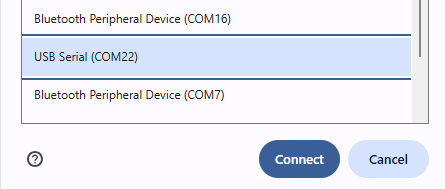
Choose your eBrain
A browser box asks which device to use. Select the USB-Serial device for your eBrain, then click Connect. You might see a name such as USB-SERIAL or a port number such as COM22. Your number may be different.
- Step 4 of 5
Look for the green icon
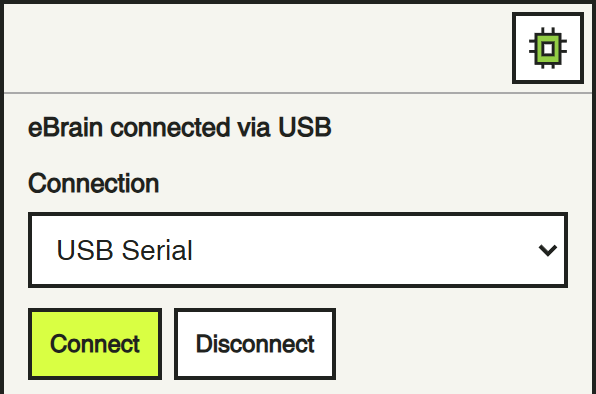
Click the little board icon to open the dock. Look for eBrain connected via USB and USB Serial. Hooray! You can use the other cards now. Closing the dock or changing cards keeps your connection.
- Step 5 of 5
If USB will not connect
Try a USB data cable: a charging-only cable will not work. Try another USB socket and close any other app or browser tab using the eBrain. If the browser chooser opens, select your eBrain’s USB-Serial device and click Connect. Keep the USB cable attached for power and data while using this connection.
You can open another card or close the dock without disconnecting your eBrain. Use Disconnect when you want to end the connection.